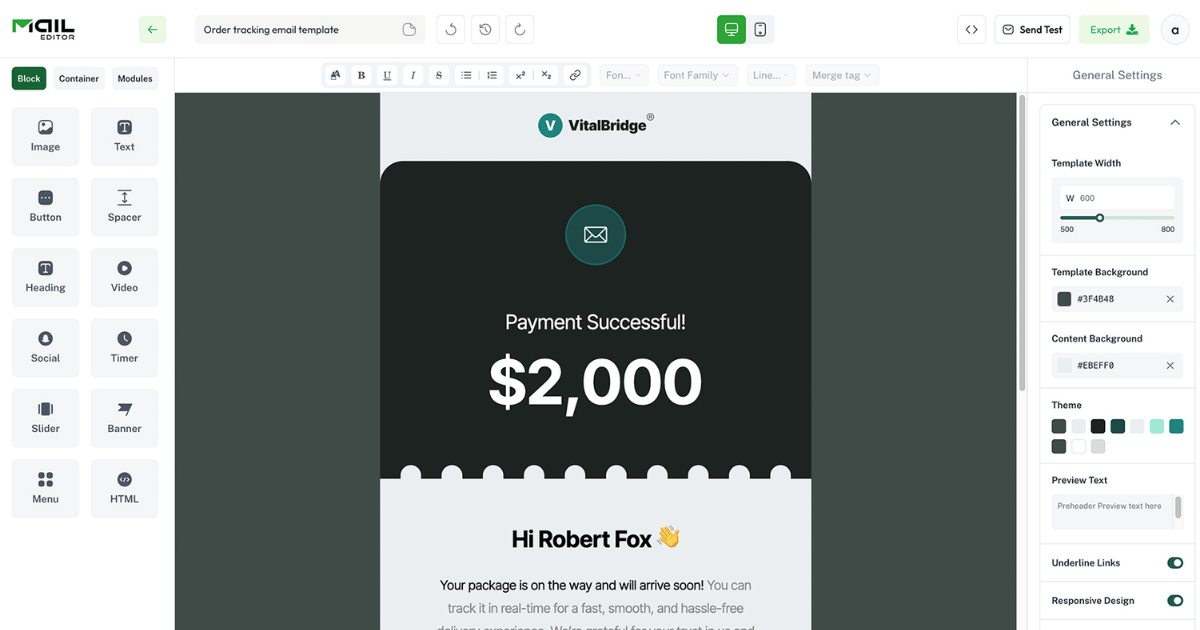
Testing your HTML email before hitting send is not optional. It is one of the most important steps in any email marketing workflow. A broken layout, a missing image, or a button that does not work can damage your brand credibility and cost you conversions. The good news is that with the right process and the right HTML email builder, testing your emails thoroughly does not have to take long. This guide walks you through exactly what to test and how to do it properly.
Why Testing Matters More Than Most Marketers Realise
Email clients do not all render HTML the same way. Gmail, Outlook, Apple Mail, and mobile clients each handle CSS, images, fonts, and layouts differently. An email that looks flawless on your screen may display broken columns, missing images, or unstyled text for a large portion of your subscribers. Beyond visual issues, there are also deliverability concerns. Emails with certain code patterns, large file sizes, or missing elements can be flagged by spam filters before they ever reach the inbox. Testing catches all of these problems before they affect your real audience.
Step 1: Send a Test Email to Yourself First
The simplest and most immediate test you can do is send the email to yourself. Open it on your desktop email client and then on your mobile phone. Check that the layout looks correct, images load, links work, and the call-to-action button is visible and clickable. This basic check takes less than two minutes and catches the most obvious issues before you go any further.
Step 2: Preview Across Multiple Email Clients
Sending to yourself is a good start, but it only shows you one client. You need to check how your email renders across all the major clients your subscribers use. At minimum, test in Gmail, Outlook, and Apple Mail. These three alone cover the majority of email opens globally. If you have access to an inbox preview tool, use it. MailEditor includes a built-in inbox preview feature that shows you how your email will look across over 40 different clients and devices without you having to manually set up multiple accounts or use third-party software.
Step 3: Check Your Email on Mobile Devices
More than half of all emails are opened on mobile devices. Your email must look just as good on a 375px wide smartphone screen as it does on a desktop monitor. Check that your columns stack correctly, your font sizes are readable without zooming, your images resize proportionally, and your call-to-action button is large enough to tap comfortably. If you built your email using a proper HTML email builder, responsive behavior should already be handled automatically. But it is still worth confirming visually before you send.
Step 4: Test Every Link in the Email
Broken links are one of the most embarrassing and damaging mistakes in email marketing. Click every single link in your email, including your logo link, body text links, call-to-action buttons, social media icons, and your unsubscribe link. Make sure every one of them goes to the correct destination. Also check that your UTM tracking parameters are intact if you are using them for campaign tracking in Google Analytics.
Step 5: Check Your Images
Images are one of the most common sources of problems in HTML emails. First, confirm that all images are hosted on a reliable server and load quickly. Slow-loading or broken images leave blank spaces in your layout that look unprofessional. Second, check that every image has descriptive alt text. Many email clients block images by default, so your alt text is what subscribers see before they choose to load images. Good alt text keeps your message readable even without the visuals.
Step 6: Run a Spam Score Check
Even a well-designed email can land in spam if it triggers the wrong filters. Before sending, run your email through a spam score checker. These tools analyse your subject line, preheader, content, HTML code, and sending domain for patterns that spam filters commonly flag. MailEditor includes a free spam score checker as part of its built-in toolkit, making it easy to identify and fix deliverability issues before your campaign goes out.
Step 7: Validate Your HTML Code
Clean, valid HTML is essential for consistent rendering across email clients. Errors in your code can cause unpredictable display issues that are difficult to diagnose after the fact. Use an HTML email validator to check your code for errors before exporting. This is especially important if you have made manual edits to the HTML after building in a visual editor. MailEditor's HTML email validator checks compatibility across major clients and flags any code issues that could cause rendering problems.
Step 8: Check Your Subject Line and Preheader
Your subject line and preheader are the first things subscribers see before they even open your email. Test how they appear across different email clients and devices. Some clients truncate subject lines at around 40 characters on mobile, so make sure your most important words appear at the start. Your preheader should complement your subject line and add context, not repeat the same words. A subject line tester shows you exactly how your subject and preheader will display in different inboxes before you commit to sending.
Step 9: Test Your Unsubscribe Link
This one is non-negotiable. Your unsubscribe link must work correctly every single time. Click it during testing and confirm it takes the subscriber to a functioning unsubscribe or preference page. A broken unsubscribe link is not just a bad user experience. It is a legal liability under regulations like GDPR and CAN-SPAM. Never send an email campaign without confirming this link works.
Step 10: Do a Final Review Before You Send
Once all your technical checks are complete, do one final read-through of the entire email. Check for spelling errors, incorrect pricing, outdated information, and anything that looks out of place. Confirm that the email is addressed to the correct list segment. Check your send time and time zone settings. Then send with confidence.
Final Thoughts
A thorough testing process is what separates professional email marketers from those who send and hope for the best. Every step in this guide takes only a few minutes but can save you from sending a broken, undeliverable, or embarrassing email to your entire list. Using a proper HTML email builder like MailEditor makes the testing process significantly easier, with built-in tools for inbox preview, spam scoring, and HTML validation all in one place. Pair that with a well-chosen set of HTML email templates as your starting point, and you give every campaign the best possible chance of landing correctly, looking great, and driving real results. Visit maileditor.net to explore the free HTML email templates and testing tools available today.